Product Variations Tab
The Variations tab is used to create several similar products that all have a common attributes. An example of this would be a product that comes in a range of sizes, and or colors. Example: You want to sell series of water bottles that come in different colors.
How To: First create the Water Bottles product. Then, using the Variations tab, click Add.
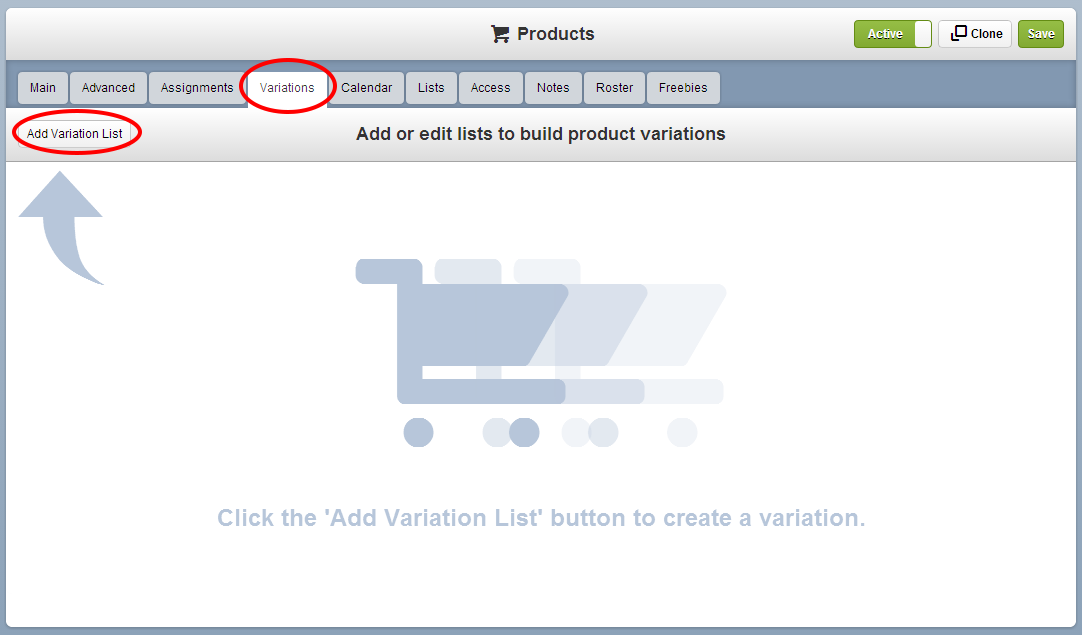
Once you've clicked the Add button you'll see a drop-down of all of the lists that you have created or were pre-seeded in your database.
Note: Create lists at Settings > Lists.
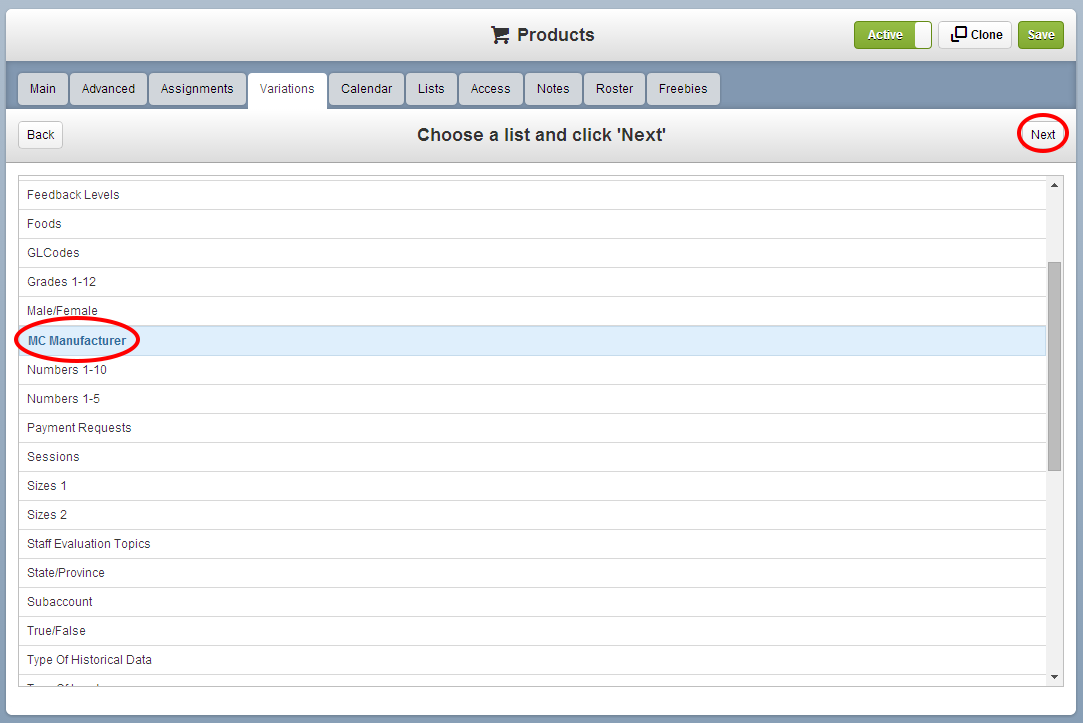
Select a list to be used by clicking on it. In this example the MC Manufacturer list is displayed. Add or Delete and click Next.
This brings up the Modify list items screen.
Now that we have the colors list as we want it, we can add additional lists, like sizes, by clicking Add back on the Variations screen.
Once you're done supplying the lists of variations, the next step is to build the products by clicking Build. The next screen is this one. Note that in this example the "master product," Water Bottle, is still inactive because we're still tweaking the Variations.
There are 3 useful tasks available under the Variations tab once you've built your products:
Delete Variations
Choose how to display the variations...
Variations Quick Edit
Delete Variations
If you've already created your product variation and realized you missed a list or an item in a list, you can delete all the variations and start over. It's done by clicking “Delete Variations”
Note: the variations can only be deleted before any of these products are purchased. Once one of the variations has been purchased, you will not be allowed to Delete Variations due to system reporting requirements.
Choose how to display the variations on the product detail page
The product Variations can be displayed in two ways in the shopping cart:
The simple drop-down list (default) will look like this:
Tip: This is an excellent method for products that have multiple list variations.
The grid view displays every combination of each variation.
The grid view allows you to display other pieces of information about the variation products in the grid. There are four available ways to display the grid view:
Name and Price only, as above (preferred for merchandise)
Event, including Name, Location, and Price
Event Simple, including Name, Start Date, End Date, and Price (no Location)
Event Detailed, including Name, Start Date, End Date, Start Time, End Time, Location, and Price
Variations Quick Edit
Using this screen you can quickly edit the name of a Variation, adjust its price, and update its inventory, then click Quick Edit Save.
In addition to the Quick Edit Save feature, there are more complex editing capabilities when working with Variations. Once a product variation is created, the variation becomes a unique product. Therefore you can modify all attributes of that product individually or as a group. Below are the bottle example's two drop-down menus used to navigate to an individual variation or a group of variations.
Modify Specific Variation - To change something about the black medium bottle, select it from the drop-down menus like this:
Now you may change any detail about the black medium water bottle (pictures, inventory, shipping, price, etc).
Modify Multiple Variations - Instead of changing a detail about a single Variation, you may want to change a group of Variations, for example all the medium bottles, regardless of color.
Below you can see that by selecting all colors and size medium you can modify attributes of that group of products.
How To: First create the Water Bottles product. Then, using the Variations tab, click Add.
Once you've clicked the Add button you'll see a drop-down of all of the lists that you have created or were pre-seeded in your database.
Note: Create lists at Settings > Lists.
Select a list to be used by clicking on it. In this example the MC Manufacturer list is displayed. Add or Delete and click Next.
This brings up the Modify list items screen.
Now that we have the colors list as we want it, we can add additional lists, like sizes, by clicking Add back on the Variations screen.
Once you're done supplying the lists of variations, the next step is to build the products by clicking Build. The next screen is this one. Note that in this example the "master product," Water Bottle, is still inactive because we're still tweaking the Variations.
There are 3 useful tasks available under the Variations tab once you've built your products:
Delete Variations
Choose how to display the variations...
Variations Quick Edit
Delete Variations
If you've already created your product variation and realized you missed a list or an item in a list, you can delete all the variations and start over. It's done by clicking “Delete Variations”
Note: the variations can only be deleted before any of these products are purchased. Once one of the variations has been purchased, you will not be allowed to Delete Variations due to system reporting requirements.
Choose how to display the variations on the product detail page
The product Variations can be displayed in two ways in the shopping cart:
The simple drop-down list (default) will look like this:
Tip: This is an excellent method for products that have multiple list variations.
The grid view displays every combination of each variation.
The grid view allows you to display other pieces of information about the variation products in the grid. There are four available ways to display the grid view:
Name and Price only, as above (preferred for merchandise)
Event, including Name, Location, and Price
Event Simple, including Name, Start Date, End Date, and Price (no Location)
Event Detailed, including Name, Start Date, End Date, Start Time, End Time, Location, and Price
Variations Quick Edit
Using this screen you can quickly edit the name of a Variation, adjust its price, and update its inventory, then click Quick Edit Save.
In addition to the Quick Edit Save feature, there are more complex editing capabilities when working with Variations. Once a product variation is created, the variation becomes a unique product. Therefore you can modify all attributes of that product individually or as a group. Below are the bottle example's two drop-down menus used to navigate to an individual variation or a group of variations.
Modify Specific Variation - To change something about the black medium bottle, select it from the drop-down menus like this:
Now you may change any detail about the black medium water bottle (pictures, inventory, shipping, price, etc).
Modify Multiple Variations - Instead of changing a detail about a single Variation, you may want to change a group of Variations, for example all the medium bottles, regardless of color.
Below you can see that by selecting all colors and size medium you can modify attributes of that group of products.
Related Articles
Product Variations All Tab
Introduction The All Tab on Product Variations enables you to simultaneously make Product attribute changes to the Master and all of a Product's Variations. For example, if you wanted to update the Online End and the Purchase End Dates on all ...Advanced Product Tab
Cart Options Organization determines the CRM Organization partnering to run this event GL Code and Sub-Account are used in reporting to determine financial responsibility for this product Product Group determines which product group this product is ...Products Access Tab
Introduction You can control whom may view and purchase specific products via the Access tab. This is useful for making exclusive events, merchandise, or packages unavailable to the general public. Getting Started Begin creating your product as ...Products: Main Tab
Topics Covered: Overview Getting Started Product Types Required Fields Dates Section Product Images and Videos Product Descriptions Activating your Product Overview Multiple controls are available to develop Products in Configio. To keep these tools ...Product Descriptions
Introduction You can write Short and Long Product Descriptions for individual Products. This enables you to intelligently organize your content. For example, you may wish to display a list of features in one description and technical specifications ...