Organization Allotments - DRAFT
Introduction
You may now assign allotments to an organization, for certain products . These are essentially a predetermined number of discounts added to a product and assigned to an organization.
Getting Started
There is an Allotment tab displayed in the organization, where you may add and view allotments. This tab may be hidden, or visible with a configuration adjustment.
The default value is to show this tab and therefore, the option is set to OFF. To adjust this configuration, do the following:
Navigate to Settings > Setup > Configuration and search for "allotment". Toggle this option ON to hide, or OFF to show.

Setting up Allotments for an Organization
All allotments are tied to a product group. When creating a new allotment, it will use the default product group.
You may change the product group tied to the allotment, by using the drop-down menu.
You may change the product group tied to the allotment, by using the drop-down menu.
Navigate to Settings > Management > Product Groups
Click the Add New Product Group button.
Give your product group a Title, choose a location and then click the Save button.
Assign products to this new product group.
Once you have added your products to your product group, you are ready to add allotments to an organization.
Adding Allotments to an Organization
To add allotments to an organization, navigate to the CRM section and search for the organization.Click on the Allotments tab and select the product group to use for the allotment.
Again, it will use the default product group, unless changed by selecting a different one.
Again, it will use the default product group, unless changed by selecting a different one.
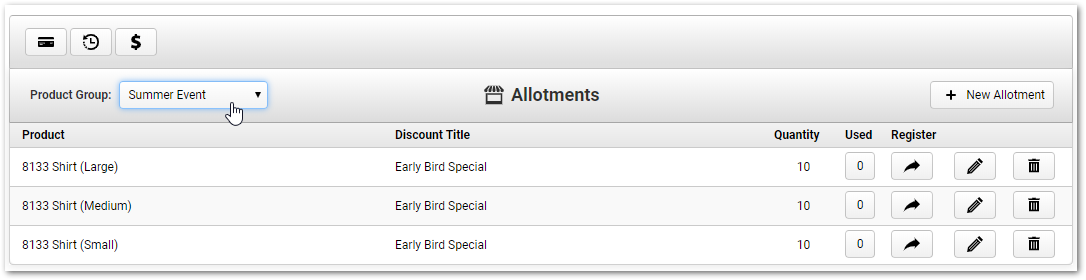
Click the + New Allotment button to create an allotment for the selected product group.
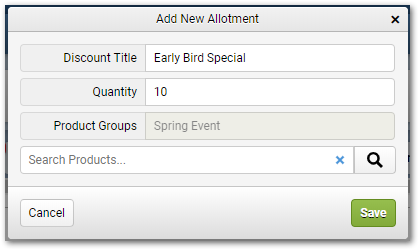
Give your allotment a title, enter a quantity, select a product through the search products section and click the Save button.
Give your allotment a title, enter a quantity, select a product through the search products section and click the Save button.
Using Allotments
Once your allotments have been created, you may click the Register button next to the allotment and go to the product in the cart.
You may right click the button to copy the link and paste it into to an email message. **NOTE: This hyperlink must not be modified once created.**
You may right click the button to copy the link and paste it into to an email message. **NOTE: This hyperlink must not be modified once created.**
When a purchase is made using the link provided, that will use an allotment.
Once the last allotment available has been consumed, the next person to use that link will be charged for the product.
Once the last allotment available has been consumed, the next person to use that link will be charged for the product.
You may view how many allotments are available and the number of allotments that have been used from the Allotments tab.

Clicking on the number of Used allotments will open the details for that allotment, listing the user who consumed the allotment and the order number.
Allotment Refunds
When you refund an order which has used an allotment, that allotment is added back to the allotment count.
Related Articles
Syncing Organization Location and Primary Address
Introduction Turn on to automatically create a location form the organization's primary address. Getting Started Login to the Administrative Console of your database, click on "Settings" > Setup > Configuration, and click on then search for "Create a ...Organization Funds
Overview Organization Funds have been developed, under the Customer Relationship Management system, to allow purchases in Configio to be made with Funds from a particular Organization. Individual purchases may be controlled with amount limits and ...Organization Custom Fields
Introduction When editing an organization you have the option to use 10 separate custom fields. Getting Started There are some configurations available that allow you to change the labels of the organization custom fields in the Customer Relationship ...Organization Landing Page
Introduction Cart Landing Pages allow for products from an organization to be grouped together. The pages can be personalized with header and footer text. You can also personalize it with a custom Theme. Note: Your database must be in Organization ...Membership Flow Down
Introduction Memberships can be added to organizations. The memberships will flow down to all accounts that are primarily affiliated with the organization. This allows the accounts under an organization to share the benefits of the membership. If a ...