Content Builder
Content Builder
Overview
The Content Builder allows you to create and edit your website's content without writing traditional HTML code. The Content Builder uses a grid system of rows and columns. You can define the options for the grid, and then drag and drop widgets into the grid. These widgets range from simple text editors, to image slideshows, to Products from your catalog.
Getting Started
To enable the CMS feature, contact your Implementation Specialist.
Launching the Content Builder
The Content Builder is launched from the Edit Post or Edit Page screen. Login to the Administrative side of your database, open the CMS Menu, and choose either Posts or Pages.
Select the Page or Post that you would like to edit, or click to add a new Page or Post.
Once the Page or Post has been saved for the first time, you can click the "Content Builder" button to launch the tool.
Adding a Row
Upon launch of the Content Builder, you will be prompted to define the Alignment for your rows. If you want your columns to be aligned left to right (default normal layout flow), then choose align left. If you want your columns to flow from right to left, then choose align right. And to align columns in the center of the screen they would choose align center. Make your selections, and click the "OK" button.
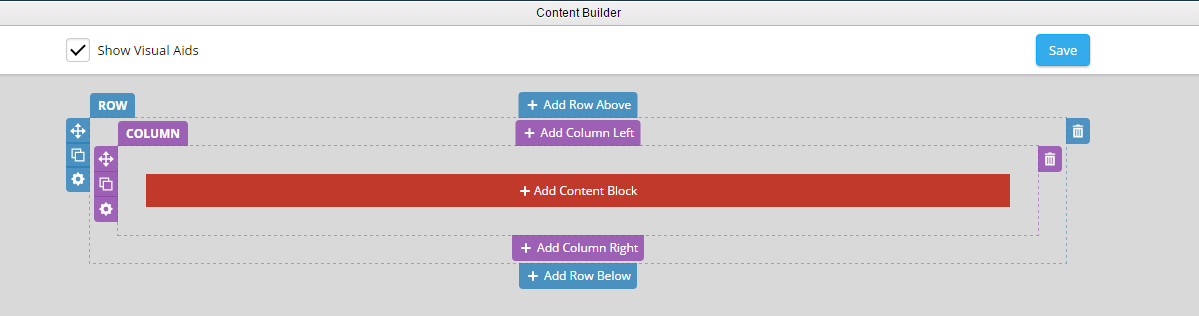
You will see the Content Builder screen. Hovering over your row will display several row controls. Note, if you don't see these controls, click to Show Visual Aids. You can:
Adding a Column
Click the Add Column button contained inside your row.
You will be presented with a screen to define size, mobile size, and alignment of the column.
Tip: The Mobile Size sets the width on screens smaller than 768px (tables portrait and smaller) if you wanted a 2 column layout on mobile you would set it to 50%.
Now, there will be a column within your row. The same controls that are available for rows are also available for columns.
Adding a Content Block
Now that you have a row and a column, you can add a Content Block by clicking the "Add Content Block" button.
You will be presented with a screen to select which type of Content Block you would like to add. After you have added one, click the Save button. Below are descriptions for each of the type of Content Blocks that you can add.
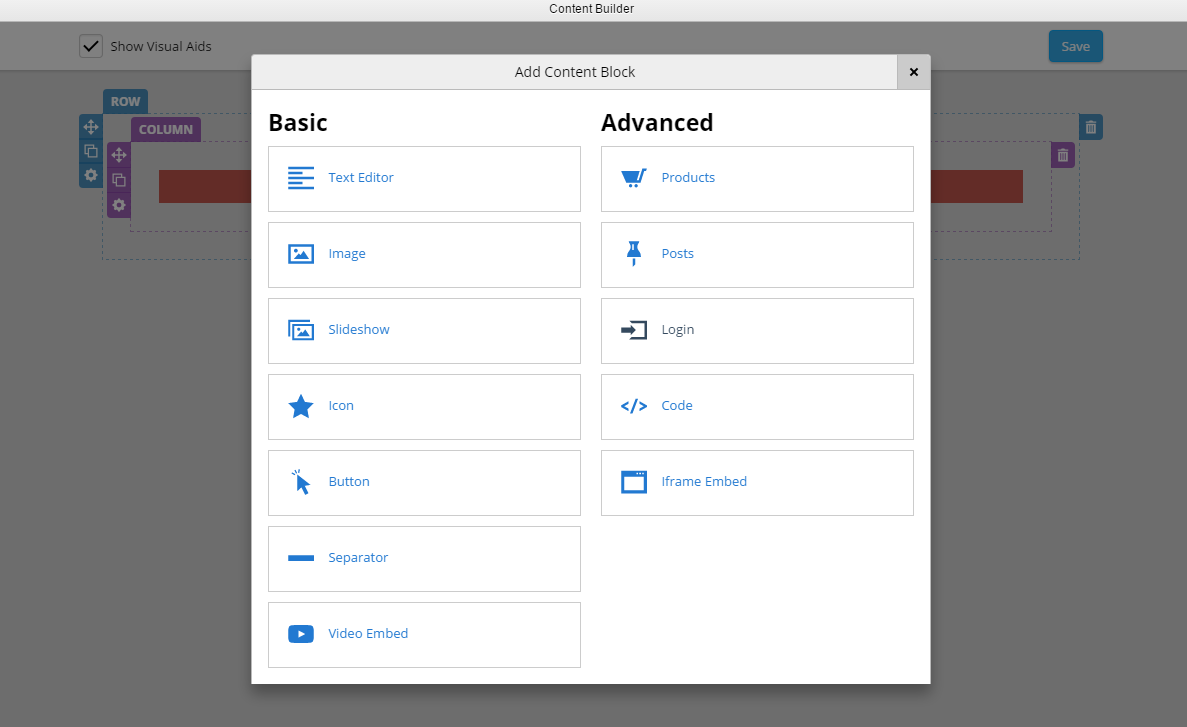
Basic Content
Advanced Content
Related Articles
Web Content
Creating Dynamic Content Pages Example: You would like to create a page to display a custom Photo Gallery, About Us, Contact information, Etc. Note: For advanced use of the web content page, such as to add a photo gallery or lightbox to the Content ...Theme Builder
Introduction Theme Builder is a web application that enables you to customize the look and feel of your Shopping Cart. It comes pre-loaded with a variety of sample themes to choose from. You can see changes to your theme in real time via a previewer. ...Managing Admin Pages
The Admin Pages in Event Manager "Settings > Admin Pages" are the actual pages that are available to users in Event Manager itself. From this page you will be able to control the access rights of Users and Groups for all Event Manager Administration ...CMS Templates
Introduction Configio comes pre-packaged with many System Templates that you can use to create many different types of Pages. You can also build Custom Templates to create even more types of pages. Getting Started To enable the CMS feature, contact ...Regions
Overview All Products must have a Category and a Region assigned to them in the Configio Administrator Console. Some businesses require thorough Category and/or Region development; others require only one or two of each. Regions can be used in many ...