Introduction
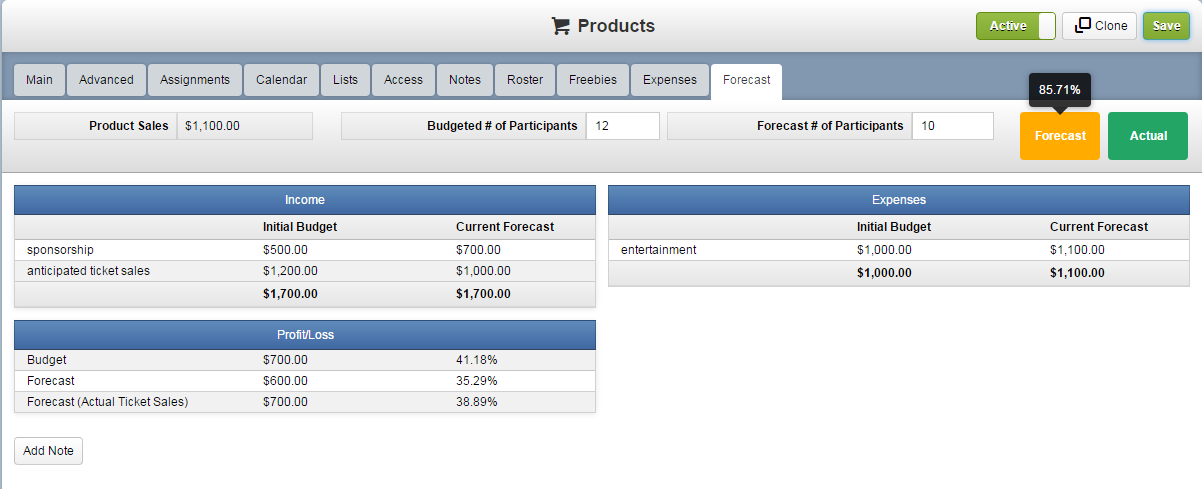
Configio allows you to forecast the financial performance of an event, and to compare the event's forecast with event's budget. This empowers you to cancel an event if it is forecasted to underachieve.
Getting Started
Go to Settings->Configuration and search "forecast". Turn ON the configurations, "Shows the forecast tab on the products page in admin" and "Shows the 'Current Forecast' field in the grid results of existing expenses." If you like, you my also rename the label for actual sales revenue.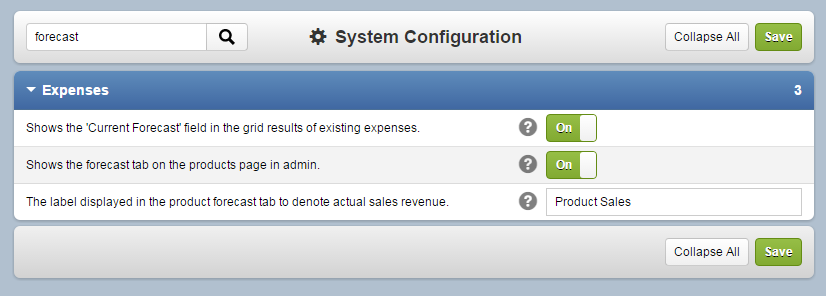
The Income Section
Income Items are added on the Expenses tab, and then they are viewable on the Forecast tab. There are columns for the Initial Budget and the Current Forecast of the items, and these columns are summed for the total Initial Budget and total Current Forecast.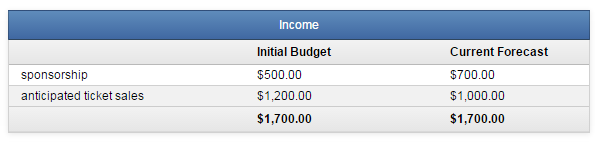
Adding Income Items on the Expenses Tab
Add Income via the Expenses tab. Click ADD NEW INCOME ITEM. Enter a "Title" and check "Include in Forecast". Input the "Initial Budget" and the "Current Forecast" for the item. If the item is your anticipated ticket sales, then check "Exclude from actual sales forecast".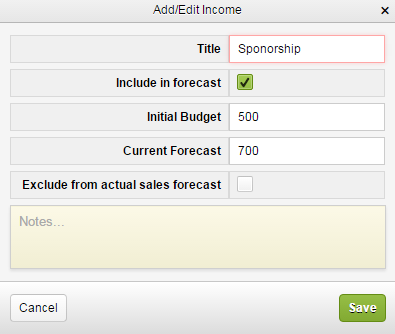
Editing Income Items on the Expenses Tab
Edit income items by returning to the Expenses tab and click the Edit icon next to the income item. This can be useful when your forecasted income changes.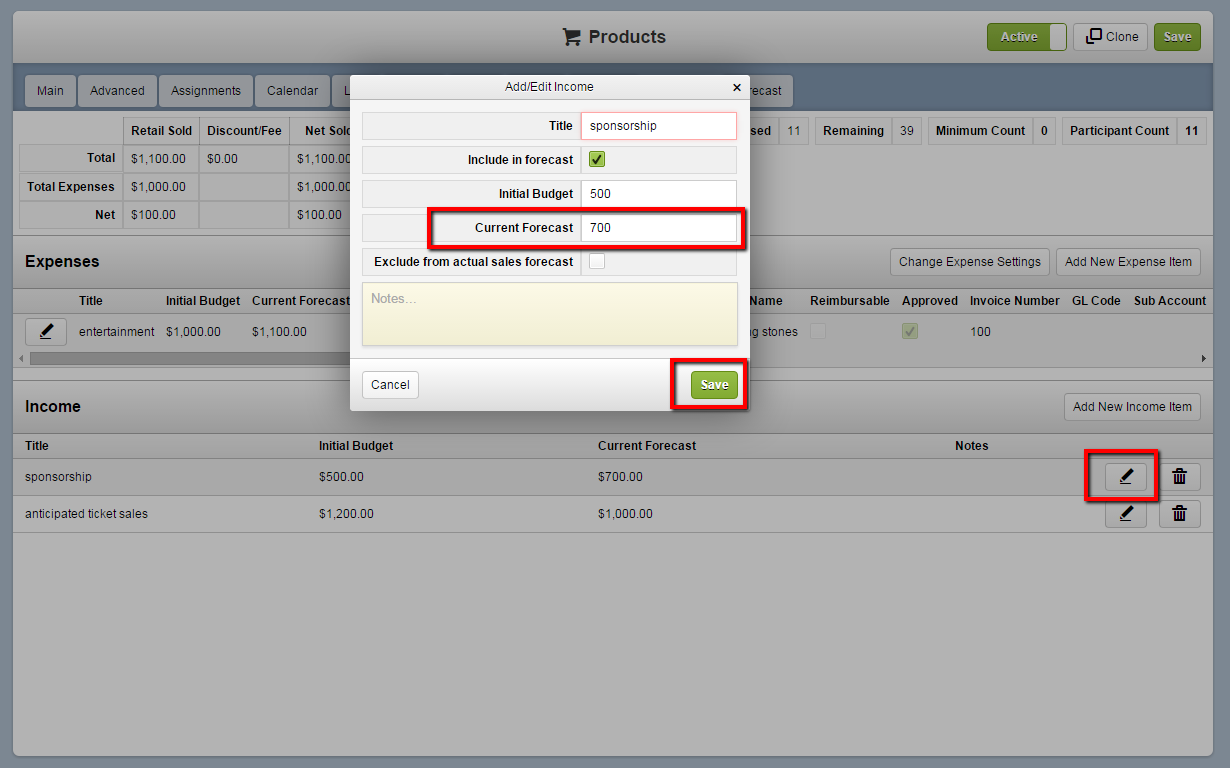
The Expenses Section
Like Income Items, Expense Items are added on the Expenses tab, and then they are viewable on the Forecast tab. There are columns for the Initial Budget and the Current Forecast of the items, and these columns are summed for the total Initial Budget and total Current Forecast.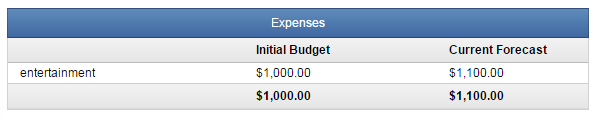
Adding Expense Items on the Expenses Tab
Add Expense Items via the Expenses tab. Click ADD NEW Expense ITEM. Enter a "Title," an "Amount", and an "Expense Type", and check "Include in Forecast". You may also input and choose values for the additional fields.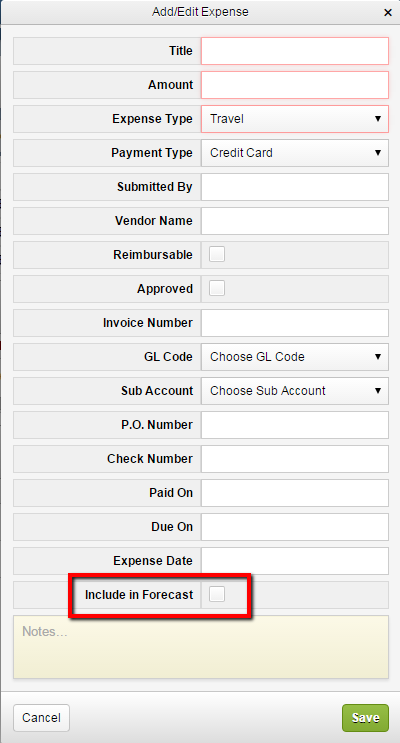
Editing Expense Items on the Expenses Tab
Edit Expense items by returning to the Expenses tab and click the Edit icon next to the Expense item. This can be useful when your forecasted expenses change.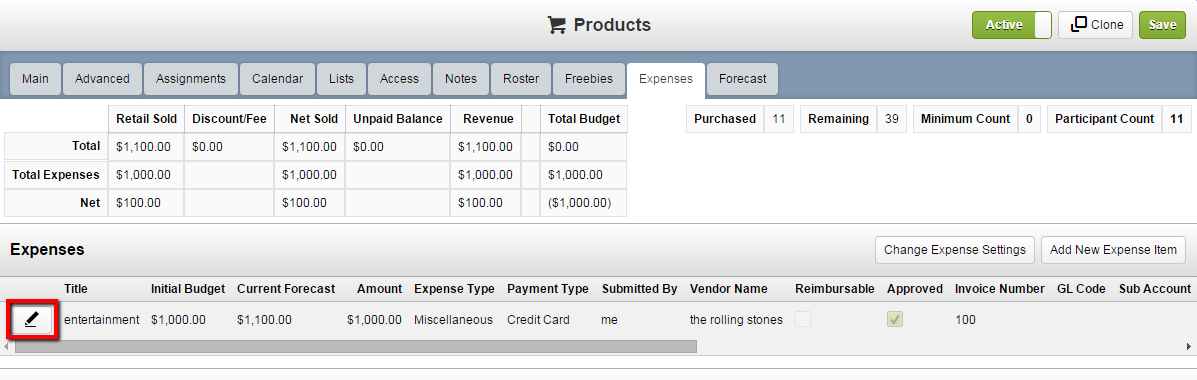
The Profit/Loss Section
The Profit/Loss Section of the Forecast Tab displays the Budgeted, Forecasted, and Forecasted (with Actual Ticket Sales) amounts and percentages. Positive amounts indicates profit, and negative amounts indicate loss.

Profit/Loss Calculations
Here is an explanation of how these fields are calculated:
The Forecast and Actual Flag
The Forecast Flag changse color according to a calculation based on the Forecast figure as a percentage of the Budget figure. This gives you an at-a-glance view of whether your Event will be profitable. The colors are:
The Budget Flag works similarly as the Forecast Flag, but it uses the "Forecast using actual ticket sales" figure. Hover over the flags for the percentages.