Creating a Waitlist Signup Notification Email Message
Introduction
Customers can join a waitlist for an out-of-stock product. When the product is back in stock (it has a positive value in the Remaining field) they will get an email notification. Your administrative users and coordinators can also get an email notifying them that customers have signed up for the waitlist.
Getting Started
First, create the email message. Login to the Admin, and go to Settings->Email Message (under Assignments). Click the "Add New Email" button. Choose a type of "Waitlist Signup Notification", input a Title, and click the "Create" button.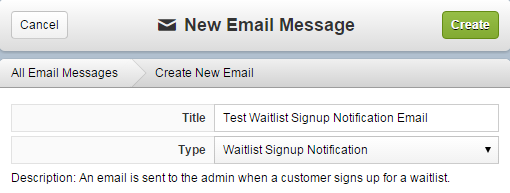
This will take you to the edit email screen. You can then build your email message using text and operators. Note: this type of Email Message is a Global Email, which means that there can only be one active in the sytem at the time, an they don't need to be assigned to products - all products will use it. Click to learn more about email messages.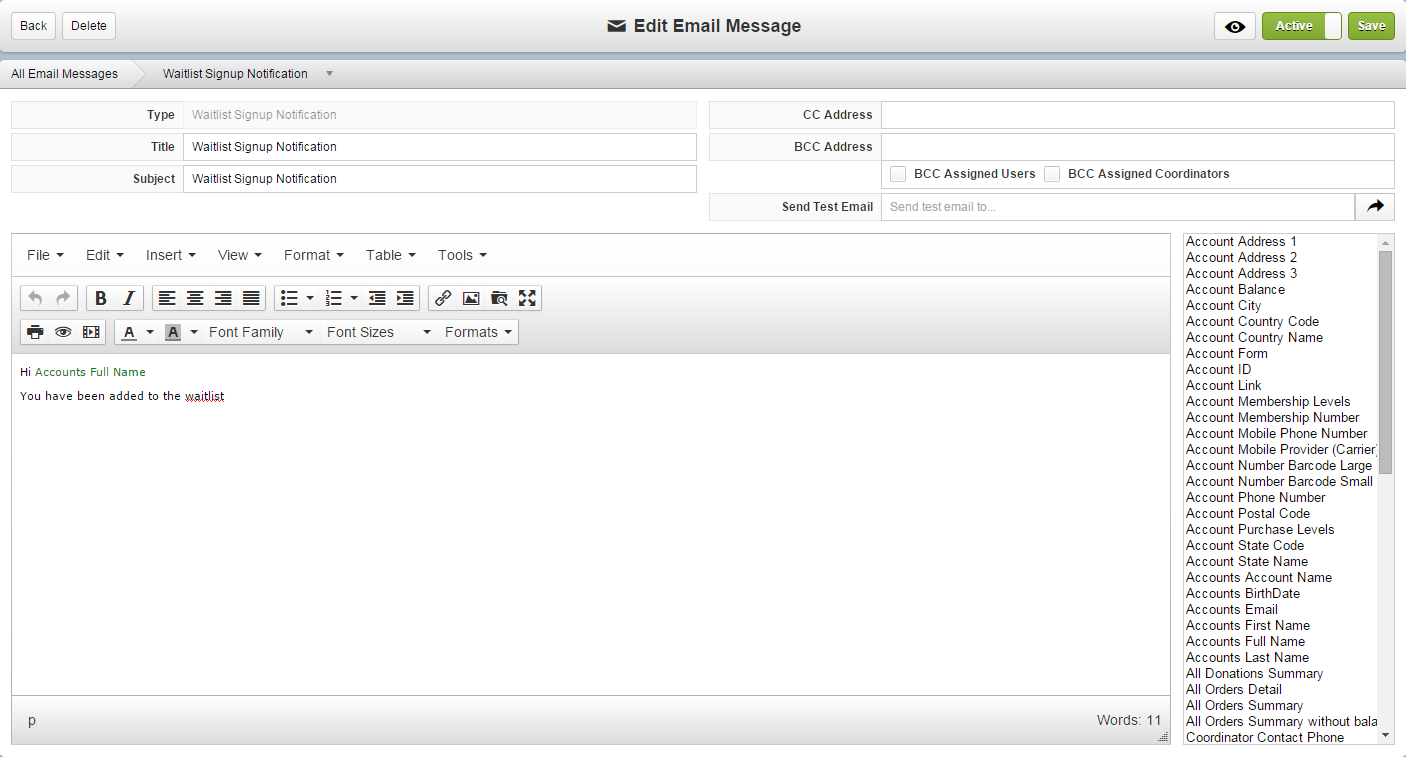
Adding Administrative Users and Coordinators
In the Edit Email Message screen, there are checkboxes to BCC Assigned Users and BCC Assigned Coordinators. Check the box (or boxes) that you are interested in, and click the "Save" button.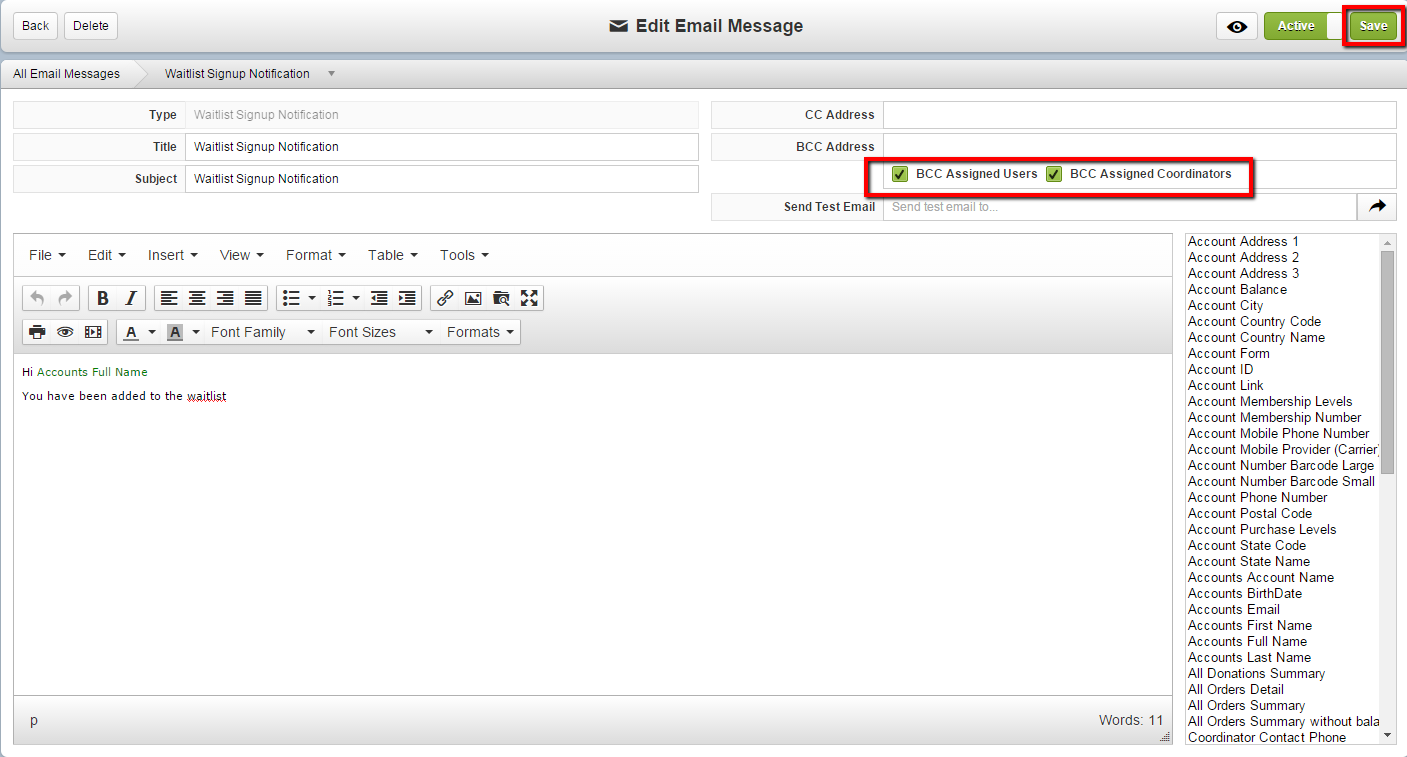
Assigning Admins and Coordinators to the Product
Navigate to Products, and find and select the Product that you are interested in. Click on the Assignments tab, find "Email Coordinator BCCs", drag the Coordinators from the Unassigned to the Assigned column, and set them to "Apply". Then, repeat for "Email User BCCs".
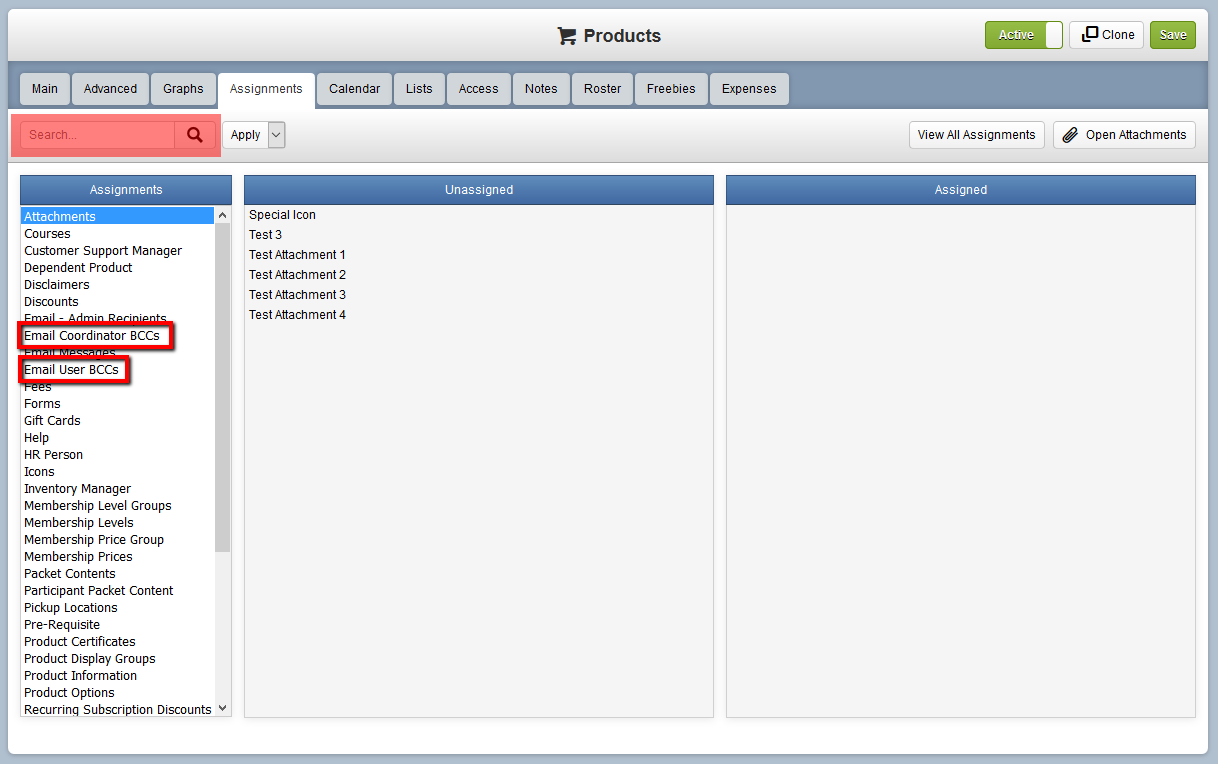
Note that the Search box in the top left will allow you to search from all of the Coordinators or Users in your database.
You're Done!
Now when an account joins the wait list for the product, your assigned Users and Coordinators will be emailed.
Related Articles
Using the Waitlist Signup Notification Email
Solution Provided If a product is configured to Allow Wait List, when the product becomes completely sold out the add to cart button will dynamically change to a wait list button. Any account that clicks this button will be added to the product wait ...Creating Email Messages
You can create Email Messages that are automatically sent in specific situations (orders, refunds, etc.) as well as bulk emails that are sent out during your campaigns. Example: You want to create a unique email to be sent when someone signs up for a ...Creating Forms
You can create various types of Forms in the system: Account Form: Whenever an Account is created, this form may be completed and the information will be stored for that account. This form type is not product specific. Only one form of this type may ...Triggered Email
Overview Triggered Email may be configured to automatically send reminders, thank you messages, updates, administrative warnings and more to any email recipient. Getting Started First, create the triggered email by going to Settings > Assignments > ...Triggered Email
Overview Triggered Email may be configured to automatically send reminders, thank you messages, updates, administrative warnings and more to any email recipient. Getting Started First, create the triggered email by going to Settings > Assignments > ...